How To Remove a Table in Excel
Feb 03, 2026
To remove an Excel table but keep the data, click any cell in it, open the Table Design tab, and choose Convert to Range. To strip only the colours, open the Table Styles gallery and click Clear. To erase the data too, select the range and press Delete.
Last updated: August 19, 2026
Get our free Excel formulas cheat sheet
Plus new tutorials and template drops. Enter your email and we'll send it over.
- How to Convert a Table Back to a Range in Excel
- Why Do the Table Colours Stay After Converting to Range?
- How to Remove Table Formatting Without Removing the Table
- How to Delete a Table Completely in Excel
- Why Is Convert to Range Greyed Out or Missing?
- What Breaks When You Convert a Table to a Range?
- How to Remove Filter Buttons from a Table
- How to Remove Several Tables or Every Table in a Workbook
- Removing Tables in Excel Mobile (iOS and Android)
- Which Method Should You Use?
- Frequently Asked Questions

There are three different jobs hiding behind the phrase "remove a table in Excel", and picking the wrong one is how people lose work. You might want the data to survive but the table object to go. You might want the table to stay but the blue banded stripes to go. Or you might want the whole block gone. This guide separates the three and shows what each one actually does to your worksheet.
How to Convert a Table Back to a Range in Excel
Converting to a range is the right choice when you want to keep every value and formula but stop Excel treating the block as a table object. Nothing moves and nothing is deleted.
Step 1: Open your file and select the table
Open your Excel file, then click any single cell inside the table. You do not need to highlight the whole block. One cell is enough to tell Excel which table you mean.
Step 2: Go to the Table Design tab
The Table Design tab appears on the ribbon automatically as soon as the cursor is inside a table. On Mac the same tab is labelled Table.
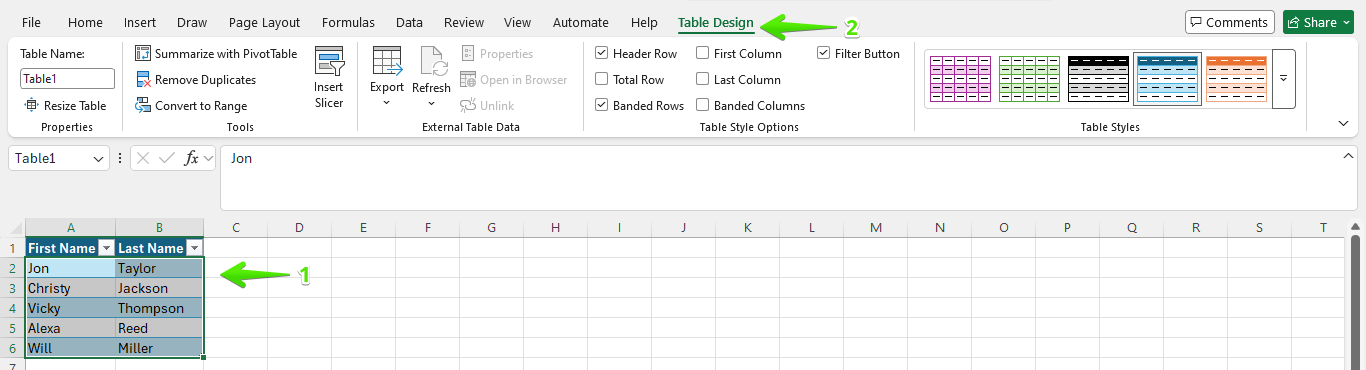
Step 3: Click Convert to Range
In the Tools group under Table Design, click Convert to Range. A confirmation dialog appears.
Faster route: right-click any cell in the table, choose Table, then Convert to Range.
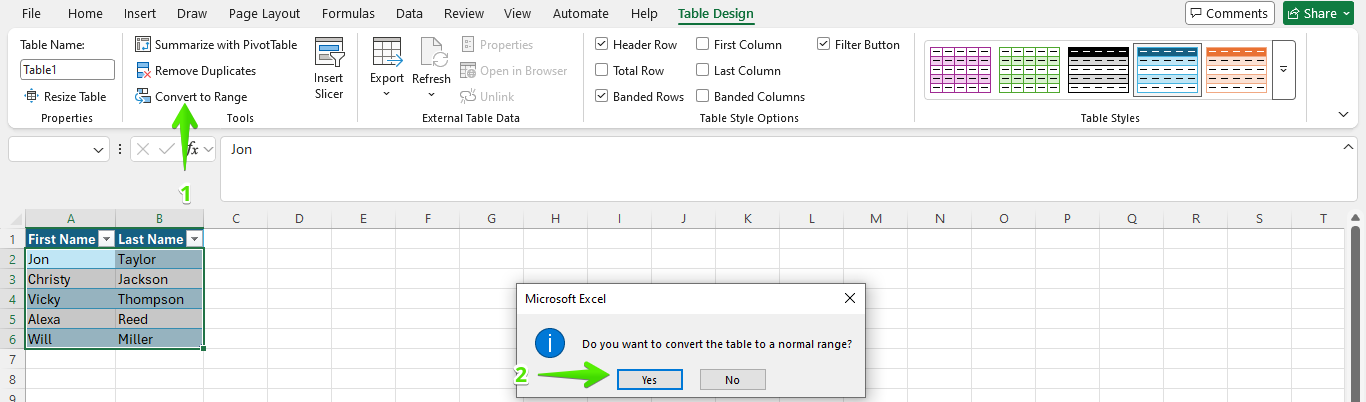
Step 4: Confirm the action
Click Yes. The filter arrows, the table name and the structured references all disappear. Every cell and every value stays. Microsoft documents the same procedure in its official guide to converting an Excel table to a range of data.
If you converted the wrong table, press Ctrl + Z immediately. Undo restores the table object intact, but only within the current session.
Rule of thumb: Convert to Range removes the table, not the formatting. If you want clean, unstyled cells, clear the style first and convert second.
Why Do the Table Colours Stay After Converting to Range?
This is the single most common complaint after a conversion, and it is not a bug. When you convert a table to a range, Excel takes whatever the table style was painting on screen and bakes it into the cells as ordinary manual formatting. The table is genuinely gone. The blue header row and the alternating stripes are now just fill colours you applied by hand, which is why they survive.
There are two ways to deal with it, and the order matters.
The clean method: clear the style before you convert
- Click any cell in the table.
- Go to Table Design and open the Table Styles gallery.
- Click the More arrow at the bottom right of the gallery, then click Clear at the foot of the menu. The table goes plain white.
- Now click Convert to Range. There is no style left to bake in, so you get unformatted cells.
The repair method: fix it after the fact
If you already converted and you are stuck with stripes, select the range and go to Home > Clear > Clear Formats. Be aware this is a blunt instrument. It removes your fill colours and borders, but it also strips number formats, so currency and date columns will revert to raw numbers and serial dates. If that matters, remove the fills manually instead with Home > Fill Color > No Fill and Home > Borders > No Border, which leaves number formatting alone.
How to Remove Table Formatting Without Removing the Table
Plenty of people do not want the table gone at all. They want the filtering, the auto-expanding formulas and the structured references, but not the corporate blue stripes. That is a different job from converting to a range, and it takes about four seconds.
Clear the table style
- Click anywhere inside the table so Table Design appears.
- Open the Table Styles gallery and click the More arrow at its bottom right corner.
- Click Clear at the bottom of the dropdown.

The table keeps every one of its powers. Only the paint is gone. This is also the answer to "how do I unformat a table" and "how do I remove the table design", which are the same operation under different names.
Turn off individual style elements instead
If you want to keep most of the style and kill one specific part of it, use the Table Style Options group on the same tab rather than clearing everything. Untick Banded Rows to lose the alternating stripes, untick Header Row to lose the coloured header, untick Filter Button to lose the dropdown arrows. Each is an independent switch.
Set a plain default so new tables are not styled
If you create tables constantly and always end up clearing them, open the Table Styles gallery, right-click the plain None or light style you prefer, and choose Set As Default. Every new table in that workbook starts unstyled.
Rule of thumb: Clear Style changes how the table looks. Convert to Range changes what the table is. Neither one deletes a single value.
How to Delete a Table Completely in Excel
If the data itself is unwanted, delete the whole block. This is the only method on this page that destroys content, so check twice before you press the key.
Step 1: Select the entire table
- Click any cell inside the table, then press Ctrl + A once to select the data body, or twice to include the header row, or
- Drag across the full table range, or
- Hover over the top left corner of the table until the cursor becomes a diagonal arrow, then click.
Step 2: Choose how much to remove
Pressing Delete clears the contents but leaves the table object and its formatting sitting there as an empty shell. That surprises a lot of people. Pick the option that matches what you actually want:
- Contents only: select the table and press Delete.
- Contents and formatting, table object still there: Home > Clear > Clear All.
- Everything including the table object and the cells: select the entire rows the table occupies, right-click a row number, and choose Delete. Only do this if nothing else lives on those rows.

Why Is Convert to Range Greyed Out or Missing?
If the button is dimmed, or the Table Design tab never appears, something is blocking the conversion. Work down this list.
| What you see | Likely cause | Fix |
|---|---|---|
| No Table Design tab at all | The range was never a real table. It is just cells with fill colours. | There is no table to remove. Use Home > Clear > Clear Formats to strip the look. |
| Whole ribbon is dimmed | The sheet or workbook is protected. | Go to Review > Unprotect Sheet, then retry. |
| Convert to Range dimmed, others active | The table is the output of a query or an external data connection. | Use Table Design > Unlink first, which breaks the connection, then convert. |
| Nothing on the ribbon responds | The file opened in Protected View, or you are still in cell edit mode. | Click Enable Editing, or press Esc to leave edit mode. |
| Options missing in the browser | Excel for the web supports fewer table commands than the desktop app. | Open the workbook in desktop Excel to convert. |
| Table is fine but conversion is blocked | The table has been added to the workbook Data Model, or the file is in old .xls compatibility mode. | Remove it from the Data Model, or save as .xlsx first. |
What Breaks When You Convert a Table to a Range?
Convert to Range keeps every value, so nothing is lost in the sense of data. But an Excel table is doing a lot of quiet work, and that work stops. Here is what changes the moment you confirm the dialog.
| Feature | After converting | Does it need attention? |
|---|---|---|
| Your data and formula results | Completely unchanged | No |
| Structured references, for example [@Price] | Rewritten as normal references such as C2 | No, results are identical |
| Formulas on other sheets pointing at the table name | Rewritten to a fixed range, so they stop growing with new rows | Yes, this is the one that bites |
| Slicers attached to the table | Deleted, and undo is the only way back | Yes |
| Total row | Stays as an ordinary row with SUBTOTAL formulas in it | No |
| Automatic expansion when you type below the table | Gone. New rows are outside the old boundary. | Yes |
| Pivot tables built on the table name | Keep working, but the source is now a fixed range that will not pick up new rows | Yes, recheck the source range |
| Filter dropdowns | Removed with the table | No, add them back with Data > Filter |
| Conditional formatting and data validation | Both survive on the existing cells | No, but they will not extend to new rows |
| The table name in Name Manager | Removed | Only if macros or queries referenced it |
Rule of thumb: Convert to Range never loses data, but it does freeze every range that used to grow by itself. Check your pivot tables and any cross-sheet formulas afterwards.
How to Remove Filter Buttons from a Table in Excel
If the table and its styling are fine and the only problem is the dropdown arrows in the header row, you do not need to convert anything.
- Click any cell inside your table.
- Go to the Table Design tab.
- In the Table Style Options group, untick the Filter Button box.
The arrows disappear and the table keeps working normally. Note that hiding the buttons does not clear a filter that is already applied, so rows hidden by an active filter stay hidden and you now have no visible way to unhide them. Clear the filter before you untick the box. If some of your rows have already vanished, our guide on how to clear filters in Excel walks through getting them back.
How to Remove Several Tables or Every Table in a Workbook
Excel has no built-in "convert all tables" command, so a workbook inherited from someone else can mean a lot of repetitive clicking. Two practical approaches:
Find every table first
Open Formulas > Name Manager and filter the list to tables. Every table in the workbook is listed there with its sheet and range, which gives you a checklist rather than hunting sheet by sheet. Click an entry and Excel jumps to it.
Convert them one at a time, quickly
Once you know where they are, the fastest manual loop is: click inside the table, press Alt then J then T then G on Windows to trigger Convert to Range, then press Enter to confirm. That is four keystrokes per table with no mouse. Repeat down your Name Manager list.
If the workbook has dozens of tables and you are comfortable with macros, a short VBA loop over ActiveWorkbook.Worksheets calling .ListObjects(i).Unlist converts them all in one pass. Save a copy of the file first, because Unlist cannot be undone once the macro has finished.
Removing Tables in Excel Mobile (iOS and Android)
The mobile apps expose fewer commands, but Convert to Range is there.
- Tap a cell in the table.
- Tap the ribbon or the pencil icon, then choose the Table menu.
- Scroll down and tap Convert to Range.
Clearing a table style is not available on mobile. If you need to strip the formatting as well, do the conversion on a desktop or in Excel for the web instead.
Which Method Should You Use?
| If you want to... | Use | Data kept? | Colours kept? |
|---|---|---|---|
| Keep the data, drop the table object | Convert to Range | Yes | Yes, baked in as manual formatting |
| Keep the table, drop the colours | Table Styles > Clear | Yes | No |
| End up with plain, unstyled data | Clear the style, then Convert to Range | Yes | No |
| Keep only the dropdown arrows gone | Untick Filter Button | Yes | Yes |
| Erase the contents entirely | Select and press Delete | No | Yes, empty shell remains |
| Erase contents and formatting | Home > Clear > Clear All | No | No |
Final Thoughts
Almost every problem in this area comes from mixing up two separate things: the table object and the table formatting. Convert to Range removes the object and leaves the paint behind. Clear Style removes the paint and leaves the object. Doing both, in that order, is what gets you plain data. And nothing here except the Delete key touches your values, so if the numbers vanished, it was a filter or a hidden row rather than the conversion.
Frequently Asked Questions (FAQ)
How do I remove a table in Excel without deleting the data?
Click any cell in the table, open the Table Design tab, then click Convert to Range and confirm with Yes. Every value, formula and cell stays exactly where it was. Only the table object is removed.
How do I delete a table completely in Microsoft Excel?
Click a cell inside the table, press Ctrl + A to select the whole table, then press Delete to clear the contents. To clear the leftover fill colours and borders as well, use Home > Clear > Clear All.
How do I remove filter buttons from a table in Excel?
Click any cell in the table, open the Table Design tab, and untick the Filter Button box in the Table Style Options group. The dropdown arrows disappear from the header row and the table keeps working.
How do I undo a table in Excel?
Press Ctrl + Z on Windows or Cmd + Z on Mac straight away. Undo reverses both creating a table and converting one to a range. Once the file has been saved and closed, undo is no longer available and you have to use Convert to Range instead.
Why can I not see the Table Design tab?
Table Design is a contextual tab, so it only appears while the cursor sits inside a real Excel table. If clicking in the data does not bring it up, the range was never converted to a table and there is nothing to remove. On Mac the same tab is simply called Table.
Will my formulas change after I convert to range?
Yes, the syntax changes but the results do not. Structured references such as [@Price] are rewritten as ordinary cell references such as C2. The formulas still calculate correctly, but they no longer expand automatically when you add a new row.
How do I remove a table in Excel on a Mac?
Click inside the table, open the Table tab on the ribbon, and click Convert to Range. Mac labels the contextual tab Table rather than Table Design, but the button sits in the same Tools group and behaves identically.
Related Blog Posts
How to Make a Table in Google Sheets
Want to Make Excel Work for You? Try out 5 Amazing Excel Templates & 5 Unique Lessons
We hate SPAM. We will never sell your information, for any reason.