How To Do the Opposite of CONCATENATE in Excel
Dec 05, 2024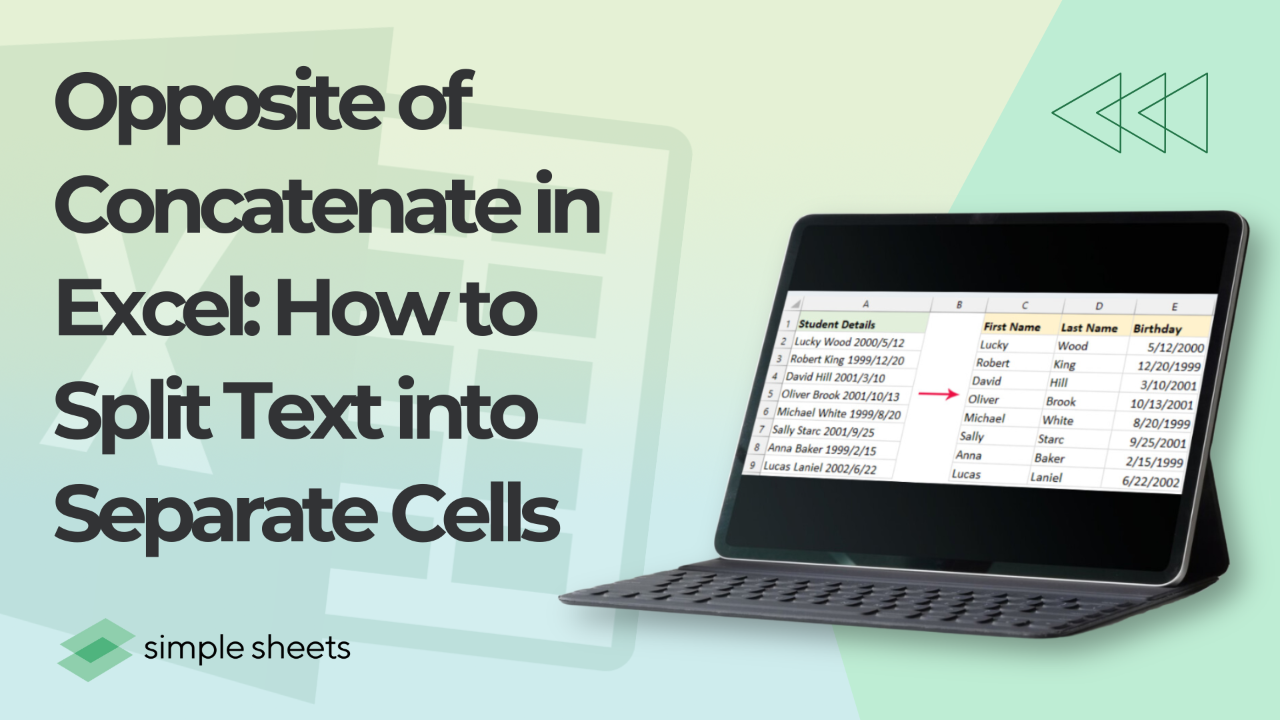
Short answer: what is the opposite of CONCATENATE in Excel?
There is no single opposite function. Splitting text apart is done four ways: TEXTSPLIT in Microsoft 365, the Text to Columns wizard on the Data tab in every version, Flash Fill with Ctrl + E, and LEFT, RIGHT and MID combined with FIND. TEXTSPLIT is the closest true reverse.
Last updated: August 18, 2026
This guide splits text apart. If you want the other direction, joining two columns into one, read how to combine two columns in Excel with a space. The two pages are exact opposites.
Concatenation is one of Excel's most used functions for combining data from multiple cells into one cell.
But what if you need the opposite? What if you have combined data and want to split it into individual cells? This process, often called "reverse concatenation," is essential in data analysis and formatting tasks.
Get our free Excel formulas cheat sheet
Plus new tutorials and template drops. Enter your email and we'll send it over.
Table of Contents
- What is the opposite of concatenate in Excel?
- Which splitting method should you use?
- How to reverse concatenate in Excel
- How do you split on more than one delimiter?
- How do you split names with a middle name or a suffix?
- How do you split text into rows instead of columns?
- Why does Text to Columns overwrite the column next to it?
- More practical examples
- What if you need to join columns instead?
- Final thoughts
- Frequently asked questions
In this article, we'll explore the best methods to split text in Excel, providing step-by-step guidance and examples.

What Is the Opposite of Concatenate in Excel?
While the Excel CONCATENATE function (or its modern equivalent, TEXTJOIN) joins text strings into a single cell, the "opposite" involves splitting a combined string into separate components. For example, splitting a full name ("John Doe") into "John" and "Doe." Excel offers several ways to achieve this, depending on the complexity of the data and the version of Excel you're using.
Worth saying plainly: Excel has no single function called UNCONCATENATE or SPLIT. That is why the answer is a set of tools rather than one formula, and why picking the right tool matters more here than it does when joining data.
Rule of thumb: TEXTSPLIT is the true reverse of TEXTJOIN. Everything else on this page is a workaround for versions of Excel that do not have it.
Which Splitting Method Should You Use?
| Method | Excel versions | Updates when the source changes | Can split into rows | Multiple delimiters | Best for |
|---|---|---|---|---|---|
| TEXTSPLIT | Microsoft 365, Excel 2024, Excel for the web | Yes, it is a live formula | Yes | Yes, pass an array of delimiters | Anything that has to stay in sync with the source |
| Text to Columns | Every version, Windows and Mac | No, the result is static | No, columns only | Yes, tick several delimiter boxes | A one-time cleanup of an entire column |
| Flash Fill | 2013 and later on Windows | No, the result is static | No | Pattern based, no delimiter needed | Irregular data where a delimiter rule would fail |
| LEFT, RIGHT, MID with FIND | Every version | Yes, it is a live formula | No | Manual, one FIND per delimiter | Older Excel that still needs a formula rather than a snapshot |
| Power Query | 2016 and later, built in | Yes, on refresh | Yes | Yes | A file you import and clean on the same schedule every month |
Rule of thumb: if the source data will ever change again, use TEXTSPLIT or a formula. Text to Columns and Flash Fill produce a snapshot that never updates.
How to Reverse Concatenate in Excel
You can do the opposite of concatenate in Excel in several ways. We have explained each method in detail below:
Method 1: Using the Text to Columns feature.
The Text to Columns wizard is a built-in Excel feature designed specifically for splitting data. Here's how to use it:
-
Select your data: Highlight the cells containing the combined text.

-
Open Text to Columns: Go to the Data tab and click on Text to Columns.

-
Choose your format:
-
Delimited: Select this option if characters like commas, spaces, or tabs separate your text.
-
Fixed Width: Use this if the text is split at specific positions.

-
-
Set delimiters or field widths:
-
If using Delimited, choose the delimiter (e.g., comma, space, semicolon).
-
For Fixed Width, drag the lines in the preview to set field widths.

-
-
Select the destination: Choose where the split data will appear (e.g., a new set of columns).

-
Finish: Click Finish to apply the changes.

One setting is worth stopping on. In step three of the wizard you can set a column data format. Leaving it on General lets Excel guess, which is how part numbers such as 03-11 silently become dates. Set any code, ID or zip column to Text before you click Finish.
Method 2: Flash Fill for quick splitting.
The Flash Fill feature is a fast option if you're working with repetitive data patterns. It works by splitting your data into multiple cells based on your first entry,
-
Enter the desired output: In an empty cell, manually type the split data for the first entry.

-
Activate Flash Fill:
-
Press Ctrl + E (Windows) or use the Flash Fill option in the Data tab.
-
Excel will detect the pattern and automatically fill the remaining cells.
-

Flash Fill is the right answer when there is no consistent delimiter to point at, for example pulling the numbers out of mixed strings. It is the wrong answer whenever the source column will be edited again, because the filled values are plain text and never recalculate.
Method 3: TEXTSPLIT function (Excel 365 and later.)
To do the opposite of CONCATENATE in Excel using the TEXTSPLIT function, you can break the string into its original parts based on a specific delimiter. See how to do it below:
-
Identify the delimiter: Determine the character(s) that separate the concatenated values (e.g., a space, comma, or any custom separator). For example, John-Doe-Developer

-
Use the TEXTSPLIT function: The syntax for TEXTSPLIT is =TEXTSPLIT(text, delimiter). Example: If the string is in cell A1, use the following formula: =TEXTSPLIT(A2, "-") and press Enter key.

-
Results: The function will split the text into separate columns. Copy the formula down to apply to the other cells.

TEXTSPLIT spills, which means one formula fills as many cells as it needs. If you see a #SPILL! error, something is sitting in the cells to the right. Clear them and the result appears.
Method 4: LEFT, RIGHT and MID with FIND
If you are on Excel 2019 or earlier, TEXTSPLIT is not available, but you still want a live formula rather than a static paste. The classic combination is a text function paired with FIND to locate the delimiter.
- First name:
=LEFT(A2, FIND(" ",A2)-1)takes everything to the left of the first space. - Last name:
=RIGHT(A2, LEN(A2)-FIND(" ",A2))takes everything to the right of it. - Middle chunk:
=MID(A2, FIND(" ",A2)+1, FIND(" ",A2,FIND(" ",A2)+1)-FIND(" ",A2)-1)pulls out the text between the first and second space.
The -1 in the first formula is what excludes the space itself. Leave it out and every first name comes back with a trailing space, which then breaks every VLOOKUP you run against it. Use SEARCH instead of FIND if you need the match to ignore capitalisation.
Rule of thumb: FIND returns the position of the delimiter, not the text around it. LEFT, RIGHT and MID do the cutting, FIND just tells them where.
How Do You Split on More Than One Delimiter?
Real data rarely uses one separator. An address line might use commas and hyphens, and an exported log might use a semicolon in some rows and a comma in others.
With TEXTSPLIT, pass an array of delimiters in curly brackets: =TEXTSPLIT(A2,{",",";","-"}). Excel splits on any of them. If consecutive delimiters are leaving blank cells in the result, add the ignore_empty argument: =TEXTSPLIT(A2,", ",,TRUE). Note the two commas, because the third argument is reserved for the row delimiter.
With Text to Columns, step two of the wizard lets you tick more than one delimiter box at a time, and there is an Other box for anything unusual such as a pipe. Tick Treat consecutive delimiters as one when a double space or a comma followed by a space would otherwise create an empty column.
With older formulas, the workaround is SUBSTITUTE. Convert every alternative delimiter to one standard one first, for example =SUBSTITUTE(A2,";",","), then split on the comma.
Rule of thumb: normalise mixed delimiters into one delimiter before splitting. It is almost always fewer steps than handling each separator individually.
How Do You Split Names With a Middle Name or a Suffix?
A two-part name is easy. Real name lists are not two-part. They contain "Mary Jane Watson", "John Doe Jr.", "Ana Maria de la Cruz" and a handful of people with no last name at all. Splitting on the first space breaks all of them.
The reliable approach is to anchor on the last space rather than the first:
- Last name, however many middle names there are:
=TRIM(RIGHT(SUBSTITUTE(A2," ",REPT(" ",100)),100)). This pads every space out to 100 characters, grabs the final 100, and trims the padding away, which leaves whatever came after the last space. - Everything before the last name:
=TRIM(LEFT(A2,LEN(A2)-LEN(RIGHT(SUBSTITUTE(A2," ",REPT(" ",100)),100)))).
Suffixes need a decision rather than a formula. Decide up front whether Jr., Sr. and III belong in the last name field or in their own suffix column, then filter the list for those strings and handle them as a group. There is no formula that can read your intent here.
Rule of thumb: split names from the last space backwards, not the first space forwards, and always sort the finished list to eyeball the odd ones before you use it.
How Do You Split Text Into Rows Instead of Columns?
Text to Columns and Flash Fill only ever split sideways. TEXTSPLIT can go down as well, because it takes two separate delimiter arguments.
=TEXTSPLIT(A2,",")splits across columns, using the second argument as the column delimiter.=TEXTSPLIT(A2,,",")splits down rows. The empty second argument is deliberate, and the third argument is the row delimiter.=TEXTSPLIT(A2,",",";")splits both at once, commas across and semicolons down, which turns one packed cell into a small grid.
This is the fastest way to turn a comma separated list stuck in one cell into a proper vertical list you can sort, filter or feed into a lookup.
Rule of thumb: in TEXTSPLIT the second argument goes across and the third goes down. Skipping the second with a double comma is what sends the result into rows.
Why Does Text to Columns Overwrite the Column Next to It?
This is the single most common way people lose data while splitting. Text to Columns writes its output starting in the selected column and spreads right, straight over whatever is already there. Excel shows a small confirmation prompt, and almost everyone clicks through it.
Two ways to avoid it:
- Insert as many blank columns to the right as you expect pieces before you run the wizard. Splitting a full name into two needs one blank column, three parts needs two.
- Or use the Destination box in step three of the wizard to point the output somewhere empty, such as a set of unused columns further along the sheet.
Because Text to Columns is a static operation, Undo is your only recovery once you have clicked Finish and saved. This is a real argument for using TEXTSPLIT where it is available, since a formula never touches the source data at all.
Rule of thumb: insert the blank columns before you open Text to Columns, not after you have seen what it did.
More Practical Examples
Here are more practical examples of how to do the opposite of CONCATENATE in Excel:
1. Splitting full names:
Whether organizing a mailing list or preparing a database for personalization, separating names ensures clarity and allows for easier filtering and sorting.
-
Input: Jane Smith
-
Output:
-
First Name: Jane
-
Last Name: Smith
-
2. Extracting address components:
Addresses often combine multiple details in a single cell, such as street names, cities, and states. Extracting these components makes analyzing location-based data easier or creating targeted reports for different regions.
-
Input: 123 Main St, Springfield, IL
-
Delimiter: Comma
-
Output:
-
Address: 123 Main St
-
City: Springfield
-
State: IL
-
3. Parsing product codes:
Product codes often include multiple pieces of information, such as the product line, batch number, and item number. Separating these details can simplify inventory tracking, SKU management, or production analysis.
-
Input: SKU-123-45
-
Delimiter: Hyphen
-
Output:
-
Product Line: SKU
-
Batch: 123
-
Item: 45
-
What if You Need to Join Columns Instead?
Everything above pulls data apart. The opposite job, taking a first name column and a last name column and producing full names, uses the ampersand operator, CONCAT, TEXTJOIN or Flash Fill.
That is covered step by step in how to combine two columns in Excel with a space, including how to keep leading zeros and how to join a date to text without it turning into a serial number.
Final Thoughts on "The Opposite of Concatenate in Excel"
Reverse concatenation is a vital skill for anyone working with combined data in Excel. It helps you to simplify and organize information efficiently. If you have Microsoft 365, TEXTSPLIT is the closest thing to a true opposite of CONCATENATE and it stays live as your data changes. On older versions, Text to Columns handles bulk one-time cleanups, Flash Fill handles messy patterns, and LEFT, RIGHT and MID with FIND give you a formula that keeps recalculating.
For more easy-to-follow Excel guides and the latest Excel Templates, visit Simple Sheets and the related articles section of this blog post.
Subscribe to Simple Sheets on YouTube for the most straightforward Excel video tutorials!
FAQ on "The Opposite of Concatenate in Excel"
What is the opposite of concatenation in Excel?
Reverse concatenation is splitting combined data in a single cell into separate parts. There is no single opposite function. It is done with TEXTSPLIT, Text to Columns, Flash Fill, or LEFT, RIGHT and MID combined with FIND.
Is there an UNCONCATENATE function in Excel?
No. Excel has never had a function by that name. TEXTSPLIT in Microsoft 365 is the functional equivalent, and the Text to Columns wizard on the Data tab does the same job in every version.
Which method is best for splitting text in Excel?
TEXTSPLIT if you have Microsoft 365 and want the result to update automatically. Text to Columns for a one-time cleanup in any version. Flash Fill when the data has a visible pattern but no consistent delimiter.
Can I split text into rows instead of columns?
Yes, with TEXTSPLIT. Use =TEXTSPLIT(A2,,",") with an empty second argument, because the third argument is the row delimiter. Text to Columns and Flash Fill only split into columns.
How do I split on more than one delimiter at once?
In TEXTSPLIT, pass an array such as =TEXTSPLIT(A2,{",",";"}). In Text to Columns, tick more than one delimiter box in step two of the wizard.
How do I split a name that has a middle name?
Anchor on the last space rather than the first. =TRIM(RIGHT(SUBSTITUTE(A2," ",REPT(" ",100)),100)) returns the last name regardless of how many middle names sit before it.
Why did Text to Columns delete my other data?
It writes its output starting in the selected column and spreads right, overwriting whatever is there. Insert blank columns first, or set the Destination box in step three of the wizard to an empty area.
Why does my TEXTSPLIT formula show a #SPILL! error?
Something is occupying the cells the result needs. TEXTSPLIT spills into as many cells as the split requires, so clear the cells to the right and the result will appear.
Related Articles
How to Combine Two Columns in Excel With a Space
How to Delete Multiple Rows in Excel
Want to Make Excel Work for You? Try out 5 Amazing Excel Templates & 5 Unique Lessons
We hate SPAM. We will never sell your information, for any reason.