Excel IF Not Blank: Check If a Cell Is Empty
Nov 28, 2024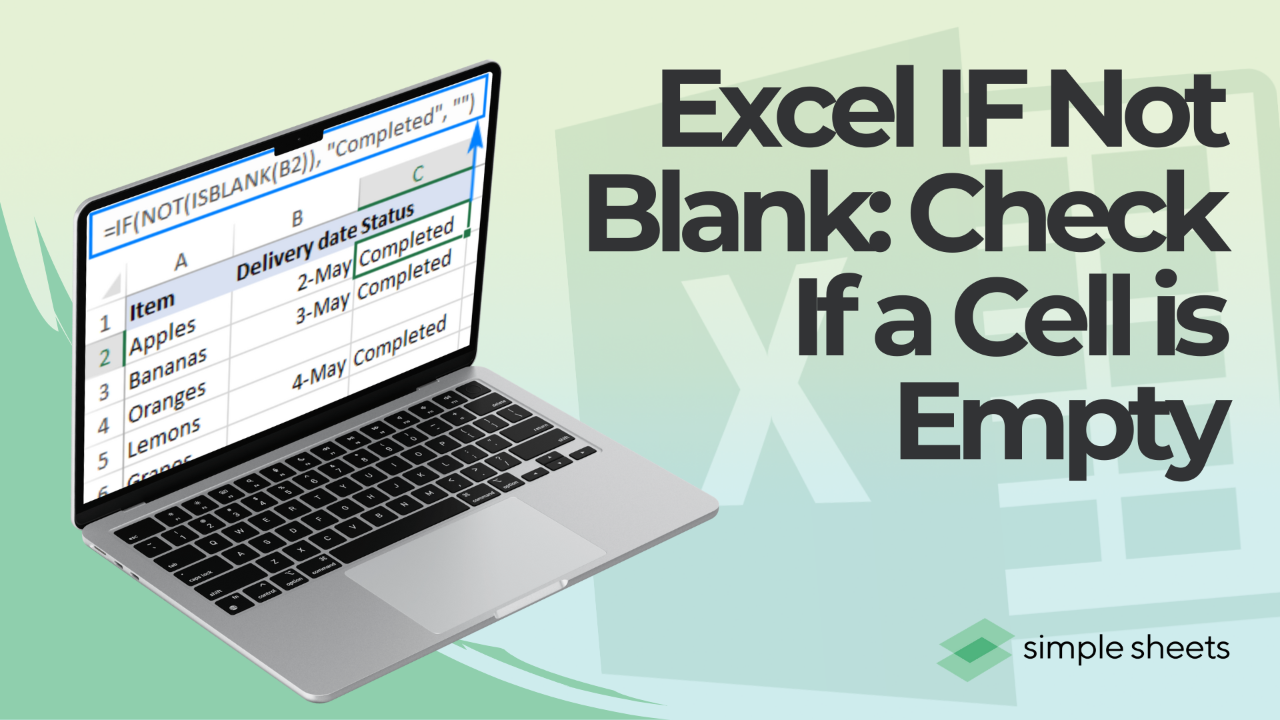
Last updated: August 18, 2026.
Quick answer: To check if a cell is not blank in Excel, use =IF(A1<>"", "Not Blank", "Blank"). The <> operator treats any content as not blank. For a stricter test that ignores formula results, use =IF(NOT(ISBLANK(A1)), "Not Blank", "Blank"). ISBLANK returns TRUE only when a cell holds nothing at all.

Get our free Excel formulas cheat sheet
Plus new tutorials and template drops. Enter your email and we'll send it over.
On this page
- Which blank test should you use? ISBLANK vs "" vs LEN
- Why does ISBLANK return FALSE on a cell that looks empty?
- How do you write an IF not blank formula?
- How do you use ISBLANK with IF and NOT?
- How do you return a blank instead of a 0?
- How do you count non-blank cells with COUNTA and COUNTIF?
- How do you sum only the rows that are not blank?
- How do you test several cells at once with AND and OR?
- How do you check a whole range with COUNTBLANK?
- How do you highlight non-blank cells with conditional formatting?
- What does the <> operator mean, and does Excel have NULL?
- How do you handle non-blank cells with VBA and AI?
- FAQ
Which blank test should you use? ISBLANK vs "" vs LEN
Excel has three common ways to ask "does this cell have something in it," and they do not agree with each other. That disagreement is the source of almost every broken blank-check formula.
Rule to remember: a cell containing a formula is never blank to Excel, even when the formula returns nothing on screen.
| Cell contains | =ISBLANK(A1) | =A1<>"" | =LEN(A1)>0 | =COUNTA(A1)=1 |
|---|---|---|---|---|
| Nothing at all (never typed in) | TRUE | FALSE | FALSE | FALSE |
| Text or a number | FALSE | TRUE | TRUE | TRUE |
| A single space typed by hand | FALSE | TRUE | TRUE | TRUE |
| A formula returning "" (empty text) | FALSE | FALSE | FALSE | TRUE |
| The number 0 | FALSE | TRUE | TRUE | TRUE |
Read the fourth row carefully. When a formula such as =IF(B1=0,"",B1) produces an empty-looking cell, ISBLANK says FALSE, <>"" says FALSE, LEN says 0, and COUNTA still counts it. Four tests, three different answers, on one cell.
How to choose:
- Use
<>""when you want "is there anything visible here," including formula results. This is the right default for most reports. - Use ISBLANK when you specifically need "was this cell ever filled in," for example when auditing an import or flagging skipped form fields.
- Use LEN(A1)>0 when you want the same behaviour as
<>""but need a number you can add up, such as=SUMPRODUCT(--(LEN(A1:A20)>0)). - Use COUNTA when you want to count cells that hold a formula, whether or not it shows anything.
Why does ISBLANK return FALSE on a cell that looks empty?
This is the single most common Excel blank-check problem, and it has four causes. Microsoft documents the behaviour in its IS functions reference: ISBLANK returns TRUE only for a genuinely empty cell.
Rule to remember: if ISBLANK says FALSE on a cell that looks empty, something invisible is in it, and you need to find out what.
1. The cell holds a formula that returns empty text.
A formula like =IF(A1=0,"",A1) writes an empty text string into the cell. The cell now has contents, so it is not blank. Test it with =ISFORMULA(A1). If that returns TRUE, switch your check to =A1<>"".
2. The cell holds a space or a non-printing character.
Imported data often carries trailing spaces or character 160, the non-breaking space that arrives with copied web tables. Diagnose it with =LEN(A1). If LEN returns 1 or more on a cell that looks empty, there is a character in there. Clean it with =TRIM(CLEAN(SUBSTITUTE(A1,CHAR(160),""))), then retest.
3. The cell was cleared with the space bar instead of Delete.
Pressing space and Enter fills the cell with a space. Select the range, press Delete, and the cells become genuinely blank again.
4. The value arrived from a database export as an empty string.
CSV and database exports frequently write zero-length text into every unfilled cell. Every one of those cells will fail an ISBLANK test. For imported data, default to =IF(TRIM(A1)<>"", "Has data", "Empty"), which handles empty text and stray spaces at the same time.
A one-formula diagnostic.
Drop this beside a suspect cell to see exactly what you are dealing with:
=IF(ISBLANK(A1),"Truly empty",IF(ISFORMULA(A1),"Formula result, length "&LEN(A1),"Typed content, length "&LEN(A1)))
How do you write an IF not blank formula?
The IF function performs a logical test and returns one of two results. Its syntax is:
=IF(logical_test, value_if_true, value_if_false)
To check that a cell is not blank, use the <> operator, which means "not equal to," against empty text:
Formula: =IF(A1<>"", "Not Blank", "Blank")
A1<>""tests whether cell A1 has visible content.- If true, it returns "Not Blank."
- If false, it returns "Blank."
Rule to remember: <>"" asks whether anything is displayed, not whether anything was typed.
Worked example: attendance tracking.
You want to label cells that contain a mark as "Present" and empty cells as "Absent."

Formula: =IF(B2<>"", "Present", "Absent")

Copy the formula down to apply it to the whole column.
Returning the cell value instead of a label.
A very common variation is "if the cell is not blank, then return the value." Use the cell reference itself as the true result:
=IF(A2<>"", A2, "")
To carry a calculation instead of a raw value, put the calculation in the true argument: =IF(A2<>"", A2*1.2, ""). The false argument returns empty text so the column stays clean.
How do you use ISBLANK with IF and NOT?
ISBLANK checks whether a cell is truly empty and returns TRUE or FALSE.
Syntax: =ISBLANK(value)
- value: the cell reference you are testing.
- Returns TRUE only when the cell contains nothing at all.
- Returns FALSE when the cell contains anything, including a space or a formula that produces empty text.

Using ISBLANK inside IF.
=IF(ISBLANK(cell), value_if_true, value_if_false)
Use it to flag missing data. If every row must carry an email address:
Formula: =IF(ISBLANK(C2), "Missing Email", "OK")

Using ISBLANK with NOT.
To invert the test and ask "is this cell not blank," wrap ISBLANK in NOT.
Formula: =IF(NOT(ISBLANK(A1)), "Not Blank", "Blank")
NOT(ISBLANK(A1)) flips the result, so the formula returns "Not Blank" whenever the cell holds anything.

Rule to remember: NOT(ISBLANK(A1)) and A1<>"" look identical until a formula result enters the picture, and then they disagree.
How do you return a blank instead of a 0?
Two different problems hide behind this question, and they need different fixes.
Problem 1: your formula shows 0 when the source cell is empty.
A plain reference such as =A1 returns 0 when A1 is empty, because Excel reads an empty cell as zero. Guard it:
=IF(A1="", "", A1)
Problem 2: your IF formula outputs 0 instead of nothing.
If your false argument is missing, IF returns FALSE, and if it is set to 0 you get a column of zeros. Set it to empty text instead:
=IF(A1<>"", A1*B1, "")
The catch nobody warns you about.
The empty text you just produced is not a blank cell. Any downstream ISBLANK test on that column will return FALSE, and AVERAGE, MIN and MAX may behave differently from what you expect. If a genuinely empty cell matters downstream, do not paper over it with "". Instead, leave the source blank and filter with =IF(COUNTA(A1)=0, "", A1*B1), or convert the finished column to values and use Find and Replace to clear the empty strings.
Rule to remember: returning "" makes a cell look empty, not be empty.
How do you count non-blank cells with COUNTA and COUNTIF?
Three functions count non-blank cells, and they count different things.
| Formula | What it counts | Counts formulas returning ""? |
|---|---|---|
=COUNTA(A2:A100) |
Every cell with any content | Yes |
=COUNTIF(A2:A100,"<>") |
Every cell with any content | Yes |
=SUMPRODUCT(--(A2:A100<>"")) |
Cells that display something | No |
=COUNTBLANK(A2:A100) |
Blank cells, including empty text | Counts them as blank |
Note the trap in row two. =COUNTIF(A2:A100,"<>") uses the operator on its own, with nothing after it, and that means "not empty." It still counts cells holding empty text, which is why the SUMPRODUCT version exists.
Counting non-blank cells that also meet another condition.
Use COUNTIFS to stack criteria. To count rows where column A is not blank and column B is a specific region:
=COUNTIFS(A2:A100,"<>",B2:B100,"West")
To count rows where two columns are both filled in:
=COUNTIFS(A2:A100,"<>",B2:B100,"<>")
Rule to remember: in COUNTIF and SUMIF criteria, the operator goes inside quotation marks, so non-blank is written as "<>".
For deeper coverage of counting rules, see our guide to counting cells with text in Excel.
How do you sum only the rows that are not blank?
SUM already ignores blank cells, so the real question is usually "sum column B only where column A is filled in." That is a SUMIF job.
Sum where another column is not blank:
=SUMIF(A2:A100,"<>",B2:B100)
SUMIF reads column A, keeps every row where A is not empty, and adds the matching values from column B.
Sum where two columns are both filled in:
=SUMIFS(C2:C100,A2:A100,"<>",B2:B100,"<>")
Sum only where a column is blank:
=SUMIF(A2:A100,"",B2:B100)
An empty pair of quotation marks as the criterion means "is blank," which is the mirror image of "<>".
Rule to remember: "<>" means not blank, "" means blank, and both must be typed as text criteria.
How do you test several cells at once with AND and OR?
IF only takes one logical test, so combine tests with AND or OR inside it.
All cells must be filled in.
=IF(AND(A2<>"",B2<>"",C2<>""), "Complete", "Missing data")
AND returns TRUE only when every test passes, so the row is marked Complete only when all three cells hold something.
At least one cell must be filled in.
=IF(OR(A2<>"",B2<>"",C2<>""), "Started", "Empty row")
A shorter version for a wide row.
Typing <>"" twelve times is painful. COUNTA collapses it:
=IF(COUNTA(A2:L2)=12, "Complete", "Missing " & 12-COUNTA(A2:L2) & " fields")
Combining a blank check with a value check.
A frequent real-world need is "only score this row if the cell is filled in and the number clears a threshold." Nest the two:
=IF(A2="", "", IF(A2>=50, "Pass", "Fail"))
The outer IF handles the blank, the inner IF handles the comparison. For the full set of threshold comparisons, see our guide to greater than or equal to in Excel.
Rule to remember: test for blank in the outer IF, then compare values in the inner IF, so an empty cell never gets scored.
How do you check a whole range with COUNTBLANK?
COUNTBLANK counts the blank cells in a range. If it returns 0, nothing in that range is missing.
=IF(COUNTBLANK(range) > 0, value_if_true, value_if_false)
- COUNTBLANK(range): counts the blank cells in the range.
- The test: checks whether that count is greater than 0.
- value_if_true: what to show when blanks exist.
- value_if_false: what to show when the range is complete.
Worked example: block a total until the data is complete.
To total a column but return a warning when any cell is missing, combine IF, COUNTBLANK and SUM:
Formula: =IF(COUNTBLANK(B2:B9)>0, "Missing Data", SUM(B2:B9))

Rule to remember: COUNTBLANK is the only blank-counting function that treats a formula returning empty text as blank.
How do you highlight non-blank cells with conditional formatting?
Conditional formatting takes the same logic and turns it into colour.
- Select the range you want to format, starting at the top-left cell.
- Go to Home > Conditional Formatting > New Rule.
- Choose Use a formula to determine which cells to format.
- Enter
=$A1<>""to highlight rows where column A is filled in, or=A1<>""to highlight each non-blank cell on its own. - Set the fill or font colour and click OK.
Two details decide whether this works. First, write the formula for the top-left cell of your selection, because Excel shifts the reference across the rest of the range. Second, lock the column with a dollar sign ($A1) when you want the whole row to react to one column.
To highlight the opposite case, missing entries, use =$A1="". To catch cells holding an invisible space as well, use =TRIM($A1)="".
Rule to remember: a conditional formatting formula is written for the first cell in the selection and copied outward from there.
For more rule patterns, see our guide to conditional formatting based on another cell.
What does the <> operator mean, and does Excel have NULL?
<> is Excel's not-equal-to operator. It is the keyboard equivalent of a crossed-out equals sign, and it returns TRUE when the two sides differ.
=A1<>B1returns TRUE when the two cells hold different values.=A1<>""returns TRUE when A1 displays something.=A1<>0returns TRUE when A1 is not zero. Careful here: a truly empty cell reads as 0, so this returns FALSE on blanks.=COUNTIF(A:A,"<>apple")counts every cell that is not the word apple.
Excel has no NULL value. If you came from SQL or Access looking for "is not null," the Excel equivalents are ISBLANK for a truly empty cell and <>"" for a cell with no visible content. There is no separate null state and no ISNULL function. The closest relative is the #NULL! error, which is unrelated: it means you used a space between two ranges that do not intersect.
For the full comparison operator set, including >= and <=, see our guide to Excel comparison operators.
Rule to remember: Excel has blanks and empty strings, it does not have nulls.
How do you handle non-blank cells with VBA and AI?
Formulas describe a result. VBA performs an action, such as moving or deleting rows. AI tools like ChatGPT and Claude are good at drafting that VBA for you, as long as you tell them the exact sheet name and range.
Example 1: copy every non-blank cell to another column.
Sub CopyNonBlankCells()
Dim ws As Worksheet
Dim sourceCell As Range
Dim targetCell As Range
Set ws = ThisWorkbook.Sheets("Sheet1") ' Change to your sheet name
Set targetCell = ws.Range("B1") ' Starting cell in target column
For Each sourceCell In ws.Range("A1:A10") ' Change to your source range
If sourceCell.Value <> "" Then
targetCell.Value = sourceCell.Value
Set targetCell = targetCell.Offset(1, 0) ' Move to the next row
End If
Next sourceCell
End Sub
Example 2: delete rows where a column is blank.
Sub DeleteBlankRows()
Dim ws As Worksheet
Dim rng As Range
Dim lastRow As Long
Dim i As Long
Set ws = ThisWorkbook.Sheets("Sheet1") ' Change to your sheet name
lastRow = ws.Cells(ws.Rows.Count, "C").End(xlUp).Row ' Find the last row in column C
For i = lastRow To 1 Step -1 ' Loop backwards to avoid skipping rows
If ws.Cells(i, "C").Value = "" Then
ws.Rows(i).Delete
End If
Next i
End Sub
Notice that both macros test with <> "" rather than ISEMPTY. In VBA, a cell holding a formula that returns empty text passes the = "" test, so these macros treat it as blank. If you need the strict version, use If IsEmpty(ws.Cells(i, "C")) Then instead.
Rule to remember: always run a delete macro on a copy of the workbook first, because VBA deletions cannot be undone.
Read more: How to Use VBA Codes in Excel.

Final thoughts
Most broken blank checks come down to one thing: the person writing the formula assumed "empty" has a single meaning in Excel, and it does not. Pick the test that matches what you actually want to know, whether that is "does this display anything" (<>""), "was this ever filled in" (ISBLANK), or "does this hold a formula" (COUNTA), and the rest of the formula falls into place.
For more easy-to-follow Excel guides and the latest Excel Templates, visit Simple Sheets and the related articles section of this blog post.
Subscribe to Simple Sheets on YouTube for the most straightforward Excel video tutorials.
FAQ
How do I check if a cell is not blank in Excel?
Use =IF(A1<>"", "Not Blank", "Blank"). The <> operator means not equal to, so the formula returns "Not Blank" whenever the cell displays anything at all.
What is the difference between ISBLANK and <>""?
ISBLANK returns TRUE only for a cell that has never been filled in. <>"" asks whether the cell displays anything, so it returns FALSE for a formula that produces empty text even though ISBLANK also returns FALSE for that cell. Use ISBLANK to audit data entry and <>"" for everyday reporting.
Why does ISBLANK say FALSE on a cell that looks empty?
Something invisible is in the cell. The four usual causes are a formula returning empty text, a trailing space or a non-breaking space from imported data, a cell cleared with the space bar, and a database export that wrote zero-length strings. Test with =LEN(A1) and =ISFORMULA(A1) to identify which.
How do I count cells that are not blank in Excel?
Use =COUNTA(A2:A100) or =COUNTIF(A2:A100,"<>"). Both count every cell with content, including formulas that return empty text. To exclude those, use =SUMPRODUCT(--(A2:A100<>"")).
How do I sum a column only where another column is not blank?
Use =SUMIF(A2:A100,"<>",B2:B100). The criterion "<>" means not blank and must be typed inside quotation marks. For two conditions, use =SUMIFS(C2:C100,A2:A100,"<>",B2:B100,"<>").
How do I return a blank instead of 0 in Excel?
Set the false argument of your IF formula to empty text, as in =IF(A1<>"", A1*B1, ""). Remember that this makes the cell look empty rather than be empty, so a later ISBLANK test on that cell will still return FALSE.
Does Excel have a NOT NULL or IS NOT NULL function?
No. Excel has no null value and no ISNULL function. Use ISBLANK for a truly empty cell and <>"" for a cell with no visible content. The #NULL! error is unrelated and means two ranges in a formula do not intersect.
Can I use VBA to work with non-blank cells?
Yes. VBA can copy, move or delete rows based on whether a cell is filled in, which formulas cannot do. Use If cell.Value <> "" Then for a display-based test or If IsEmpty(cell) Then for a strict empty-cell test, and always test on a copy of the workbook.
Get our free Excel formulas cheat sheet
Plus new tutorials and template drops. Enter your email and we'll send it over.
Related Articles
Want to Make Excel Work for You? Try out 5 Amazing Excel Templates & 5 Unique Lessons
We hate SPAM. We will never sell your information, for any reason.