How To Unhide an Excel Workbook or Worksheet
Nov 25, 2024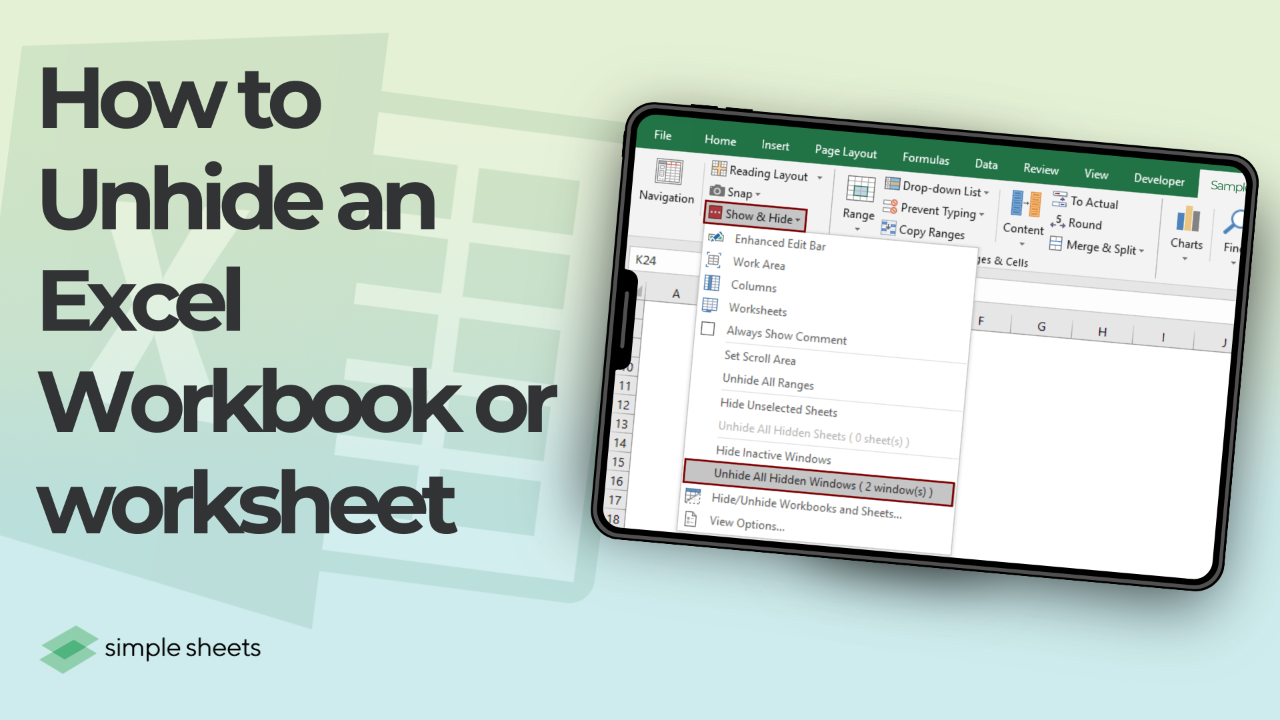
To unhide a sheet in Excel, right-click any sheet tab and choose Unhide, then pick the sheet and click OK. If Unhide is greyed out, the workbook structure is protected. If a sheet is missing from the list entirely, it is set to very hidden and only the VBA editor can restore it.
Last updated: August 19, 2026
Get our free Excel formulas cheat sheet
Plus new tutorials and template drops. Enter your email and we'll send it over.
- Which Kind of Hidden Are You Dealing With?
- How To Unhide a Worksheet in Excel
- How To Unhide a Hidden Workbook Window
- How To Unhide All Sheets in Excel at Once
- How To Unhide a Very Hidden Sheet
- Why Is the Unhide Option Greyed Out?
- How To Tell Whether a Workbook Has Hidden Sheets
- What Is the Keyboard Shortcut To Unhide a Sheet?
- Unhiding Rows and Columns Is a Different Job
- Frequently Asked Questions

Which Kind of Hidden Are You Dealing With?
Most of the time people spend hunting for a missing sheet is spent in the wrong menu. Excel can hide four different things, and each one has its own command. Work out which one you have before you start clicking.
| What you are seeing | What is actually hidden | Where to go |
|---|---|---|
| Other tabs are visible, one is missing | A hidden worksheet | Right-click a tab, then Unhide |
| Excel is open but the grid area is blank or grey, with no tabs at all | A hidden workbook window | View > Unhide |
| Right-click Unhide works, but the sheet you want is not in the list | A very hidden worksheet | The VBA editor, Alt + F11 |
| The file itself is not in the folder where you saved it | A hidden file on the drive, not an Excel setting | File Explorer, View > Show > Hidden items |
Rule of thumb: if you can see other sheet tabs, the problem is a sheet. If you cannot see any tabs at all, the problem is the workbook window.
How To Unhide a Worksheet in Excel
Users usually hide worksheets in Excel to protect sensitive information or declutter their screens. This is the standard route and it handles the large majority of cases.
-
Open the workbook where the hidden worksheet resides.
-
Right-click on any visible worksheet tab at the bottom of the Excel window.
-
From the menu that appears, select Unhide.
-
You’ll see a list of hidden worksheets in the Unhide dialog box. Select the worksheet you want to unhide.
-
Click OK, and the selected worksheet will become visible.

The same command lives on the ribbon under Home > Format > Hide & Unhide > Unhide Sheet if you prefer not to right-click. Microsoft covers the basic operation in its official guide to hiding and unhiding worksheets.
If the Unhide option is grayed out, it could mean that no worksheets are currently hidden or the workbook is protected. In the case of protection, you’ll need to unprotect the workbook or contact the file owner for access. There is a fuller diagnosis further down.
How To Unhide a Hidden Workbook Window in Excel
This is the case people get stuck on longest, because the fix is nowhere near the sheet tabs. If Excel is running and the title bar shows a file name, but the grid is blank and there are no tabs along the bottom at all, the entire workbook window has been hidden. Right-clicking will not help, because there is no tab to right-click.
- Go to the View tab on the ribbon.
- In the Window group, click Unhide. If the button is greyed out, no workbook window is hidden and your problem is something else.
- Select the workbook you want back from the list and click OK.
A workbook hidden this way stays hidden the next time the file is opened, which is why it catches people out repeatedly rather than once. Personal macro workbooks, for example, are deliberately kept hidden this way. To hide a workbook again, use View > Hide.
How To Unhide All Sheets in Excel at Once
What works here depends on your Excel version, and most guides only give you the old answer.
Microsoft 365: select several sheets in the dialog
Current Microsoft 365 builds let the Unhide dialog take more than one selection. Right-click a tab, choose Unhide, then Ctrl-click individual sheets or Shift-click to grab a run of them, and click OK. Every selected sheet comes back at once, with no macro involved. If your dialog refuses to accept a second selection, you are on an older build and need the macro below.
Excel 2019 and earlier: a short macro
Older versions accept only one sheet per trip through the dialog, so unhiding twenty sheets means twenty rounds. A macro does the lot in one pass:
Sub UnhideAllSheets()
Dim ws As Worksheet
For Each ws In ThisWorkbook.Sheets
ws.Visible = xlSheetVisible
Next ws
MsgBox "All sheets are now visible!"
End Sub
Then, follow these steps:
-
Open Excel and press Alt + F11 to access the VBA Editor.
-
Insert a new module via Insert > Module.
-
Paste the code above into the module.
-
Run the macro by pressing Alt + F8, selecting the macro, and clicking Run.
Worth knowing: because this macro sets every sheet to xlSheetVisible, it also reveals very hidden sheets, which the Unhide dialog cannot reach at all. That makes it the fastest way to audit an unfamiliar workbook. If you would rather not add a macro to the file, run it from your Personal Macro Workbook and swap ThisWorkbook for ActiveWorkbook so it acts on whichever file is in front.
How To Unhide a Very Hidden Sheet in Excel
If the Unhide command is available, the dialog opens, and the sheet you are looking for simply is not on the list, the sheet is not ordinarily hidden. It is very hidden. Excel gives every worksheet three visibility states rather than two, and the third one is deliberately invisible to the normal interface.
| State | Tab shown? | Appears in the Unhide dialog? | How it is set |
|---|---|---|---|
| Visible | Yes | Not applicable | Default |
| Hidden | No | Yes | Right-click the tab, then Hide |
| Very hidden | No | No | VBA only |
Because the state can only be set through code, it can only be cleared through code. Here is the manual route, which needs no macro:
- Press Alt + F11 to open the VBA editor.
- In the Project Explorer panel on the left, expand your workbook, then expand Microsoft Excel Objects. Every sheet is listed there, including the ones you cannot see in Excel. If the panel is missing, press Ctrl + R.
- Click the sheet you want back.
- Open the Properties window by pressing F4.
- Find the Visible property at the bottom of the list and change it from 2 - xlSheetVeryHidden to -1 - xlSheetVisible.
- Press Alt + Q to return to Excel. The tab is back.
Two things commonly block this. If the VBA project itself is password protected, you cannot expand it and there is no legitimate way past that without the password. And if the whole workbook structure is protected, unprotect it first.
Rule of thumb: Unhide greyed out means protection. Unhide available but your sheet is not listed means very hidden. Those two symptoms have completely different fixes.
Why Is the Unhide Option Greyed Out in Excel?
A dimmed Unhide command has a small number of causes, and one of them accounts for most cases.
| Cause | How to confirm it | Fix |
|---|---|---|
| Workbook structure is protected | On the Review tab, the Protect Workbook button looks pressed in or highlighted | Click it to unprotect, entering the password if there is one |
| Nothing is actually hidden | Hide is available but Unhide is not | Nothing to fix. Check for very hidden sheets instead |
| Only very hidden sheets exist | The VBA Project Explorer shows more sheets than the tab bar does | Use the very hidden method above |
| The file is in Protected View | A yellow banner across the top of the window | Click Enable Editing |
| Several sheets are selected as a group | The title bar says Group, and several tabs look active | Click a single tab to ungroup, then retry |
The distinction that trips people up: protecting a sheet does not grey out Unhide. Only protecting the workbook structure does. If someone tells you the file is not protected, they may be thinking of sheet protection, so check the Review tab yourself.
How To Tell Whether a Workbook Has Hidden Sheets
Before you go hunting, confirm there is something to find.
- The quick check. Right-click any sheet tab. If Unhide is available rather than greyed out, at least one ordinarily hidden sheet exists.
- The thorough check. Press Alt + F11 and count the sheet objects listed under Microsoft Excel Objects. If that number is higher than the number of tabs you can see, the difference is hidden or very hidden sheets.
- The formula clue. Formulas that reference a sheet name you cannot see in the tab bar are pointing at a hidden sheet. Broken references showing #REF! after someone deleted a sheet are a different problem entirely.
What Is the Keyboard Shortcut To Unhide a Sheet in Excel?
Excel has no single key combination for this, but the ribbon accelerator sequence is quick once it is in your fingers. Press these keys one after another, not together:
-
Alt to activate the ribbon accelerators.
-
H for the Home tab.
-
O for the Format menu.
-
U for Hide & Unhide.
-
S for Unhide Sheet.
That opens the Unhide dialog box, where you can use the arrow keys and Enter without touching the mouse. The same sequence ending in H instead of S hides the active sheet, which is worth knowing so you do not trigger it by accident. On Mac there is no equivalent accelerator sequence, so use the Format menu or right-click the tab.
Unhiding Rows and Columns Is a Different Job
Hidden rows and hidden columns have nothing to do with the Unhide command on the sheet tab, and the sheet tab menu will never bring them back. Select the row or column headers on either side of the gap, right-click one of them, and choose Unhide. To reveal everything at once, press Ctrl + A and then use Home > Format > Hide & Unhide > Unhide Rows.
Both of those have their own full walkthroughs, including the cases where unhiding appears to do nothing because a filter or a frozen pane is actually responsible:
Final Thoughts on "How To Unhide an Excel WorkSheet"
Nearly every case comes down to correctly naming what is hidden. A missing tab with other tabs still showing is a hidden sheet. A blank Excel window with no tabs is a hidden workbook. A sheet that refuses to appear in the Unhide list is very hidden and needs the VBA editor. A greyed out Unhide command is protection, not a missing sheet. Match the symptom to the right menu and the fix takes seconds.
For more easy-to-follow Excel guides and the latest Excel Templates, visit Simple Sheets and the related articles section of this blog post.
Subscribe to Simple Sheets on YouTube for the most straightforward Excel video tutorials!
Frequently Asked Questions
Can I unhide multiple worksheets at once in Excel?
In current Microsoft 365 builds you can. Open the Unhide dialog, then Ctrl-click or Shift-click several sheets in the list and click OK. In Excel 2019 and older the dialog only accepts one selection at a time, so unhiding every sheet needs a short VBA macro.
Why is the Unhide option greyed out in Excel?
Almost always because the workbook structure is protected under Review > Protect Workbook. Protecting a sheet does not grey out Unhide, only protecting the structure does. The other possibility is that there are genuinely no hidden sheets, or that the only hidden sheets are set to very hidden.
Why is my sheet missing from the Unhide dialog box?
It is set to very hidden. That state can only be applied and reversed through VBA, so the sheet never appears in the normal Unhide list. Press Alt + F11, select the sheet in the Project Explorer, and change its Visible property to -1 - xlSheetVisible.
What is the keyboard shortcut to unhide a sheet in Excel?
There is no single key combination. Press Alt, then H, then O, then U, then S. That walks the ribbon to Home, Format, Hide & Unhide, Unhide Sheet, and opens the Unhide dialog. Press the keys one after another rather than holding them down together.
How do I unhide a whole Excel workbook rather than a sheet?
A whole workbook is hidden at the window level, not the tab level. Open the View tab, look in the Window group, and click Unhide. Pick the workbook from the list and click OK. Right-clicking a sheet tab will never bring back a hidden workbook window.
Can I unhide a workbook if I do not know the password?
No. If the workbook structure is protected with a password you need that password to remove the protection and reach the hidden sheets. Contact the file owner. Treat any tool promising to strip the password from a file you do not own as off limits.
How do I unhide rows or columns instead of sheets?
That is a different command. Select the row or column headers on either side of the gap, right-click one of them, and choose Unhide. To reveal everything on the sheet, press Ctrl + A to select all cells, then use Home > Format > Hide & Unhide > Unhide Rows or Unhide Columns.
Related Articles
How to Unhide All Rows in Excel
How to Unhide Columns in Excel
How to Fix Excel Formulas Not Calculating Error
Want to Make Excel Work for You? Try out 5 Amazing Excel Templates & 5 Unique Lessons
We hate SPAM. We will never sell your information, for any reason.