How To Clear Excel Cache on Windows & Mac
Dec 05, 2024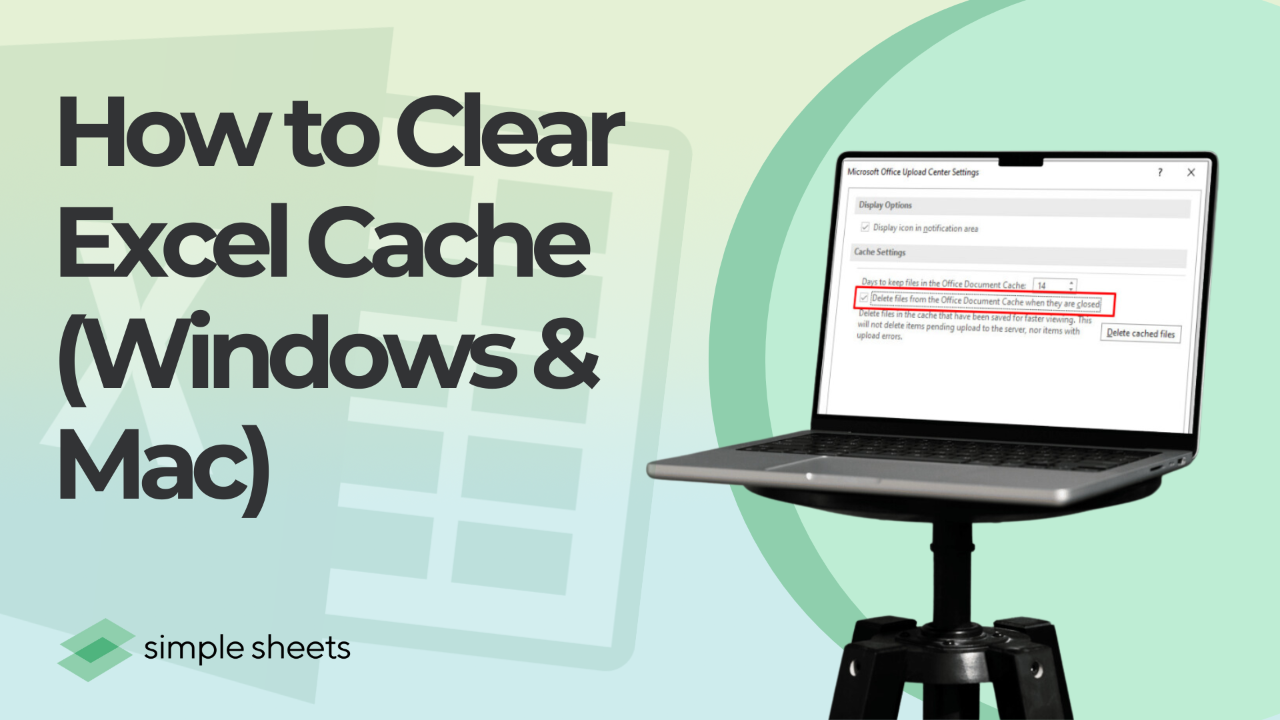
To clear the Excel cache on Windows, go to File, Options, Save, find the Cache Settings section and click Delete cached files. On Mac, quit Excel and empty ~/Library/Containers/com.microsoft.Excel/Data/Library/Caches/. Neither deletes your workbooks. Excel has several separate caches, so the one you need depends on the problem you are trying to fix.
Clearing the cache in Microsoft Excel helps you maintain performance and prevent errors. Over time, cached data accumulates, which can lead to slower operations, sync conflicts and files that will not open. This guide covers all six routes on Windows 11, Windows 10 and Mac, tells you exactly where each cache lives on disk, and covers the two problems people usually mean when they go looking for it: Excel stuck on "Performing Cleanup", and memory errors.
Get our free Excel formulas cheat sheet
Plus new tutorials and template drops. Enter your email and we'll send it over.
Last updated: August 23, 2026
What this guide covers
- Does Excel even have a cache to clear?
- Where is the Excel cache located?
- How to clear the Excel cache on Windows 11 and Windows 10
- How to clear the Excel cache on Mac
- How to clear the Office cache, not just Excel's
- Which cache should you actually clear?
- Why is Excel stuck on "Performing Cleanup"?
- Does clearing the cache fix Excel memory errors?
- Frequently asked questions

Does Excel Even Have a Cache to Clear?
Yes, but not one single cache. Excel maintains several separate stores, and "clear the Excel cache" means a different action for each. This is why generic advice so often fails to fix anything.
- The Office Document Cache. The big one, and the one File, Options, Save is talking about. It holds local copies of files you open from OneDrive or SharePoint so they load faster and survive a dropped connection. This is what causes sync conflicts and "Files Needing Attention".
- The PivotTable cache. Every PivotTable stores its own snapshot of the source data. Stale items in a filter dropdown that no longer exist in the data come from here.
- The Office Clipboard. Holds up to 24 copied items and is separate from the Windows clipboard.
- Temporary files. Excel writes working files while a workbook is open and normally cleans them up on close. Crashes leave them behind.
- The web add-in cache. Used by Office Add-ins. Only relevant if an add-in is misbehaving.
- Recent documents and the calculation chain. Neither is really a cache, but both get called one.
The rule: match the cache to the symptom. Sync problems mean the document cache. Ghost filter items mean the PivotTable cache. A broken add-in means the add-in cache. Clearing all six because Excel feels slow is not a diagnosis.
Where Is the Excel Cache Located?
These are the actual paths. Paste them into the address bar in File Explorer, or into Command + Shift + G in Finder. Quit Excel first. The Windows paths are the same on Windows 11 and Windows 10.
| What it holds | Windows path | Mac path |
|---|---|---|
| Office Document Cache | %LOCALAPPDATA%\Microsoft\Office\16.0\OfficeFileCache |
~/Library/Containers/com.microsoft.Excel/Data/Library/Caches/ |
| Temporary working files | %TEMP% (files beginning with a tilde or "Excel") |
~/Library/Containers/com.microsoft.Excel/Data/Library/Application Support/Microsoft/Office/ |
| Web add-in cache | %LOCALAPPDATA%\Microsoft\Office\16.0\Wef\ |
~/Library/Containers/com.microsoft.Excel/Data/Documents/wef |
| Shared add-in web cache | Cleared with the Wef folder | ~/Library/Containers/com.Microsoft.OsfWebHost/Data/ |
| AutoRecover files | %APPDATA%\Microsoft\Excel\ |
~/Library/Containers/com.microsoft.Excel/Data/Library/Application Support/Microsoft/Office/Office 365 AutoRecovery |
The 16.0 in the Windows paths is the Office version number and is correct for Office 2016, 2019, 2021, 2024 and Microsoft 365. Older installs use 15.0 or 14.0.
Important correction if you have read this elsewhere: on Mac, ~/Library/Caches/Microsoft/Office is the old pre-sandbox location. Excel for Mac has been sandboxed since Office 2016, and Microsoft documents the current caches under ~/Library/Containers/ in its Clear the Office cache guide. If the old folder exists on your Mac at all, it is a leftover and emptying it will not change anything.
The rule: use the menu command before you delete a folder. Deleting cache files by hand while Excel is running is how people lose unsaved work. Every method below that touches a folder starts with quitting Excel for a reason.
How To Clear the Excel Cache on Windows 11 and Windows 10
Every method in this section works identically on Windows 11 and Windows 10. Microsoft did not move the cache or change the menus when Windows 11 shipped, so if you searched specifically for a Windows 11 method, these are it. The only thing that differs is cosmetic: on Windows 11 the Run box and File Explorer look slightly different.
Method 1: Clear the document cache from Excel Options
This is the supported route and the one to try first. It empties the Office Document Cache without touching your files.
-
Open Excel and go to the File tab.

-
Select Options to open the Excel Options dialog box.

-
Click on the Save category.

-
Locate the Cache Settings section.
-
Click Delete cached files and confirm the action in the prompt.

Tip: the same Cache Settings panel has a "Delete files from the Office Document Cache when they are closed" checkbox and a "Days to keep files" box. On a shared or public machine, tick the first. On your own machine, leave it clear so offline editing keeps working.
If the Cache Settings section is not there, your Excel has never opened a cloud file, so there is no document cache to clear. That is normal, not a fault.
Method 2: Delete Excel temporary files
Useful after a crash, when Excel leaves working files behind that it would normally clean up on close.
-
Close Excel completely. Check Task Manager for a stray
EXCEL.EXEprocess and end it if you find one. -
Press Win + R to open the Run dialog box.
-
Type
%temp%and press Enter to open the Temp folder. -
Sort by name and delete files starting with "Excel" or with a tilde. Windows will refuse to delete anything genuinely in use, so this is safe.
-
Empty the Recycle Bin to permanently remove them.
Method 3: Clear the PivotTable cache
This is the fix for filter dropdowns that still list values you deleted from the source data weeks ago.
-
Right-click any cell in the PivotTable and select PivotTable Options.
-
Go to the Data tab.
-
Set the Number of items to retain per field to None.
-
Click OK, then right-click the PivotTable and select Refresh.
Worth knowing: two PivotTables built from the same source usually share one cache, so this affects both. If you need them independent, build the second from a fresh range selection rather than copying the first.
Method 4: Clear the Office Clipboard and the web add-in cache
Two smaller caches that occasionally cause real problems.
- Office Clipboard. On the Home tab, click the small arrow at the bottom right of the Clipboard group to open the Clipboard pane, then click Clear All. This holds up to 24 items and is separate from the Windows clipboard, which Win + V manages.
- Web add-in cache. Go to File > Options > Trust Center > Trust Center Settings > Trusted Add-in Catalogs and tick Next time Office starts, clear all previously-started web add-ins cache, then restart Excel. This is Microsoft's supported method and it is safer than emptying the Wef folder by hand.
Method 5: What VBA can and cannot do here
You will find macros online presented as cache clearers. Be careful with what they actually do.
Application.CalculateFull forces every formula in every open workbook to recalculate from scratch. Application.CalculateFullRebuild goes further and rebuilds the dependency tree as well, which is the right tool when Excel appears to be using stale formula results.
Neither of them clears a cache. They discard cached calculation results by recomputing them, which is a genuinely useful thing to do, but they do not touch the document cache, the PivotTable cache, temporary files or anything on disk. If a page tells you a one-line CalculateFull macro clears the Excel cache, it is describing a recalculation.
- Press Alt + F11 to open the VBA editor.
- Insert a new module and paste:
Sub ForceFullRebuild()Application.CalculateFullRebuildEnd Sub - Run it. Expect it to take a while on a large workbook, because it is redoing every calculation.
If stale formula results are the actual problem, the causes are usually elsewhere. See Excel formulas not calculating.
How To Clear the Excel Cache on Mac
The Mac steps genuinely differ, because macOS sandboxes Excel and puts its data inside a container rather than in the shared Library folders.
Method 6: Empty the Excel container caches
-
Quit Excel completely. Use Command + Q, not just closing the window. Check that Excel is gone from the Dock.
-
Open Finder and press Command + Shift + G.
-
Paste
~/Library/Containers/com.microsoft.Excel/Data/Library/Caches/and press Enter. -
Select everything inside and move it to Trash. Delete the contents, not the folder itself.
-
If an add-in is the problem, also empty
~/Library/Containers/com.Microsoft.OsfWebHost/Data/and~/Library/Containers/com.microsoft.Excel/Data/Documents/wef. -
Empty the Trash and reopen Excel. The first launch will be slightly slower while it rebuilds.
The quick add-in route on Mac: if a single task pane add-in is misbehaving, you do not need the Finder at all. Open the add-in's task pane, click the personality menu (the small icon at the top of the pane) and choose Clear Web Cache.
On the Excel menu, Preferences: there is no "clear cache" button in Excel for Mac preferences. Some guides send you to Preferences, Save or Preferences, Sharing and Privacy looking for one. It is not there. The container folders above are the actual mechanism.
How To Clear the Office Cache, Not Just Excel's
The Office Document Cache is shared across Word, Excel and PowerPoint, so clearing it from any one of them clears it for all three. If your problem is a file stuck uploading or a sync conflict rather than something Excel-specific, this is the level to work at.
- Use the Cache Settings panel from any Office app. File, Options, Save, Cache Settings, Delete cached files. Identical in Word and PowerPoint.
- Check Files Needing Attention first. Go to File > Open > Files Needing Attention. Anything listed there has unsaved changes that exist only in the cache. Resolve those before you delete anything, or you will lose the edits.
- The Microsoft Office Upload Center is gone. It shipped with Office 2013 and 2016 and was retired. If a guide tells you to search the Start menu for it, that guide predates its removal. Files Needing Attention replaced it.
- As a last resort, empty the folder. Close every Office app, then delete the contents of
%LOCALAPPDATA%\Microsoft\Office\16.0\OfficeFileCache. Microsoft recommends the Cache Settings button over this, because the button also updates the cache index.
Quotable rule: never empty the Office cache while Files Needing Attention has entries in it. Those entries are edits that have not reached the server yet, and deleting the cache deletes them.
Which Cache Should You Actually Clear?
| Symptom | Clear this | Method |
|---|---|---|
| OneDrive or SharePoint file will not sync, or shows a conflict | Office Document Cache | Method 1 |
| Filter dropdown shows old values that are no longer in the data | PivotTable cache | Method 3 |
| Excel crashed and now files behave oddly | Temporary files | Method 2 |
| An add-in shows a blank pane or an old version | Web add-in cache | Method 4 on Windows, Method 6 on Mac |
| Paste is inserting the wrong thing | Office Clipboard | Method 4 |
| Formulas show stale results | Nothing. This is a calculation setting | Method 5, then check calculation mode |
| Excel is simply slow on a big file | Nothing. This is workbook size | See the memory section below |
| Disk is full and OfficeFileCache is enormous | Office Document Cache | Method 1, then lower "Days to keep files" |
Why Is Excel Stuck on "Performing Cleanup"?
Excel shows a "Performing Cleanup" or "Microsoft Excel is performing cleanup" message when it is releasing resources, usually as a workbook closes or after a very large operation. It is normal for a second or two. When it hangs for minutes, something specific is holding it up.
- A very large clipboard selection. Copying a whole column or several thousand formatted cells and then closing Excel makes it clean up the entire selection first. Press Esc to drop the marching-ants selection before you close, and clear the Office Clipboard with Method 4.
- Too many objects on a sheet. Copied rows duplicate shapes, comments and form controls invisibly. Press F5, click Special, choose Objects and press OK to select them all. If Excel selects hundreds you did not know were there, that is your answer.
- An add-in running shutdown code. Start Excel in safe mode by holding Ctrl as you launch it, or by running
excel /safe. If cleanup is instant in safe mode, disable add-ins one at a time to find the culprit. - A cloud file still uploading. Excel will not finish cleanup until the last save reaches OneDrive or SharePoint. Check Files Needing Attention and wait for the sync icon to settle.
- A bloated used range. Press Ctrl + End. If the cursor lands thousands of rows below your data, delete the empty rows and columns, save, close and reopen.
The rule: "Performing Cleanup" hanging is almost always about how much is selected or how many objects exist, not about the cache. Clearing the cache is worth doing but it is rarely what fixes this one.
Does Clearing the Cache Fix Excel Memory Errors?
Sometimes, and it is cheap enough to try first, but be realistic about which error you have.
- "There isn't enough memory to complete this action." Clearing the cache and the Office Clipboard genuinely helps here, because this error fires on a single action such as a large paste or sort and it needs free memory at that instant. Close other workbooks too.
- "Excel ran out of resources while attempting to calculate one or more formulas." The cache is not the cause. This is a calculation-scope problem, usually a formula referencing whole columns. See Excel ran out of resources.
- Excel freezes or stops responding entirely. Also not a cache problem. See Excel not responding.
- Excel is just slow. Cache size affects startup and file-open time, not calculation speed. If the slowness is in recalculation, the workbook is the problem.
Final Thoughts
Clearing Excel's cache is a reasonable maintenance habit and an occasional real fix, but it is not a general performance cure. Match the cache to the symptom: the document cache for sync problems, the PivotTable cache for ghost filter values, temporary files after a crash, and the add-in cache when a pane misbehaves. If the problem is slow recalculation or a workbook that will not calculate, the cache is not where the fault lives.
For more easy-to-follow Excel guides and the latest Excel Templates, visit Simple Sheets and the related articles section of this blog post.
Subscribe to Simple Sheets on YouTube for the most straightforward Excel video tutorials!
Frequently Asked Questions
Where is the Excel cache located on Windows?
The Office Document Cache lives at %LOCALAPPDATA%\Microsoft\Office\16.0\OfficeFileCache. Temporary working files are in %TEMP%, and the web add-in cache is in %LOCALAPPDATA%\Microsoft\Office\16.0\Wef. The 16.0 is the Office version and covers Office 2016 through Microsoft 365. The paths are identical on Windows 11 and Windows 10.
Will clearing the cache delete my files or data?
No. Clearing the cache removes temporary copies, not your workbooks. The one real risk is the Office Document Cache: if File, Open, Files Needing Attention lists anything, those are edits that have not reached the server yet and deleting the cache deletes them. Resolve that list first.
How often should I clear Excel's cache?
There is no schedule worth keeping. Clear it when you have a symptom that points to it, such as a sync conflict, a stale PivotTable filter or a misbehaving add-in. Routine clearing on a healthy install mostly just makes the next few file opens slower.
Does a VBA macro clear the Excel cache?
Not really. Application.CalculateFull and Application.CalculateFullRebuild force formulas to recalculate from scratch, which discards cached calculation results, but neither touches the document cache, the PivotTable cache or any files on disk. Macros presented online as one-line cache clearers are recalculating, not clearing.
Why is the Office Upload Center missing from my Start menu?
Because Microsoft retired it. It shipped with Office 2013 and 2016 and has been replaced by File, Open, Files Needing Attention inside each Office app. Any guide that tells you to open the Upload Center predates the change.
Can clearing the cache fix a corrupted Excel file?
It can help when the trouble is a bad cached copy of a cloud file rather than damage inside the workbook itself, and clearing the document cache forces a fresh download from the server. For genuine corruption, use File, Open, then the arrow next to Open and choose Open and Repair.
Related Articles
Excel Ran Out of Resources While Attempting to Calculate
Excel Not Responding? How To Fix It
How to Fix Excel Formulas Not Calculating
How to Do the Opposite of CONCATENATE in Excel
Want to Make Excel Work for You? Try out 5 Amazing Excel Templates & 5 Unique Lessons
We hate SPAM. We will never sell your information, for any reason.