How to Sort in Google Sheets: Quick and Easy Methods
Feb 22, 2026
How to Sort in Google Sheets
Basic Sorting Methods
Several built-in sorting options can help you organize data without using any Google Sheets formulas or functions. Using the data menu, you can rearrange rows in ascending or descending order based on a column’s values. These methods change the original order of the data range, so you should select the correct range and header row before clicking sort.
Sort an Entire Sheet
If you have a simple list and want all the rows in your sheet to move together based on a single column, this is the most efficient method. This action reorders all data in the entire spreadsheet.
-
Hover your mouse over the letter above the column you will be using for sorting.
-
Right-click the letter to open the drop-down menu.
-
Select Sort sheet from A to Z (ascending order) or Z to A (descending order).

Sort a Range
This method lets you sort data by a single column while keeping all rows together. It’s the fastest way to arrange names in alphabetical order, numbers in numerical order, or dates from oldest to newest.
-
Select any cell in the sorting column and highlight the full range of cells you want to organize.
-
Go to the top menu and click Data.
-
Select Sort range from the menu and choose your preferred sorting option.

If you want more control:
-
Click Advanced range sorting options.

-
Check Data has header row if you have one.
-
Choose the column you want to sort (for example, Column A).
-
Pick ascending alphabetical order (A–Z) or descending order (Z–A).
-
Click Sort.

Sort Multiple Columns by Priority
Sometimes one column is not enough. You may want to group similar values first, then organize them inside each group. This is where sorting multiple columns becomes useful. Google Sheets applies a primary sorting rule, then uses the next column to break ties.
Example:
You can first sort by name, then by numerical value, such as sales amount.
-
Highlight the full data range (include all rows and columns).
-
Go to the top menu → click Data → Sort range → Advanced range sorting options.
-
Check Data has header row.
-
Choose your first column (primary sorting order).
-
Click Add another sort column.

-
Select the next column and choose ascending or descending order.
-
Repeat for additional columns if needed.
-
Click Sort.

Read more: How to sort by date in Google Sheets.

Sort by Color (Fill Color or Text Color)
Google Sheets also lets you sort data based on fill color or text color. This is useful when colors mark priority items, deadlines, or status labels inside a spreadsheet.
-
Highlight the entire data range.

-
Go to Data → Create a filter.
-
A filter icon will appear in the column title.
-
Click the filter icon in the column you want.
-
Choose Sort by color.
-
Select either fill color or text color.

-
Pick the color to move to the top or bottom.

The sheet will now reorganize all the rows so entries with that color appear first.
Filtering vs Sorting — When to Use Each
Sorting rearranges rows in a spreadsheet, while a filter only hides data that doesn’t match a condition. Both tools organize information, but they behave differently.
When you sort data, the entire data range changes position, and the original order is lost. Anyone viewing the sheet will see the new arrangement. When you use Google Sheets filter or filter view, the rows stay in place, and only the visible values change. So, collaborators keep their own view without affecting others.
Use sorting when you want a permanent order, such as alphabetical order, numerical ranking, or date order. Use a filter view when reviewing data or temporarily focusing on specific values.
Dynamic Sorting Using Functions
Manual sorting works, but it has one limitation. Every time new data is added, you must sort again. Functions solve this by creating a second range that automatically updates whenever values change in Google Sheets.
SORT Function
The SORT function lets you automatically sort data in Google Sheets without changing the original order of the spreadsheet. Instead of rearranging the source range, it creates a new, organized table that updates whenever values change.
Sort formula: =SORT(range, sort_column, is_ascending)
Example
If your data range is in A2:C6 and you want to sort by Column C in ascending order:
=SORT(A2:C6, 3, TRUE)
-
range → the full range containing the data sets
-
3 → the column number inside the selected range (Column C)
-
TRUE → ascending order (FALSE = descending order)

The results will appear in a new area of the sheet, leaving the original data untouched.
FILTER + SORT Combination
You can choose to sort only specific rows that meet a condition. By combining the filter and sort functions, Google Sheets first selects matching records and then automatically organizes them.
Formula: =SORT(FILTER(range, condition), sort_column, is_ascending)
Example
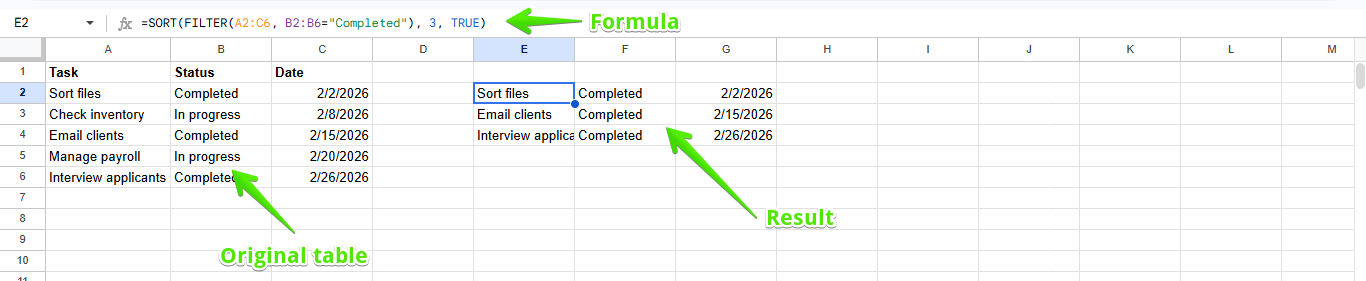
Show only rows where Column C equals “Completed”, then sort them by date (Column C):
=SORT(FILTER(A2:C6, B2:B6="Completed"), 3, TRUE)
What happens here:
-
FILTER selects matching rows from the data
-
SORT arranges the filtered values in ascending order
-
The original spreadsheet remains unchanged
QUERY Sorting
The QUERY function lets you sort data in Google Sheets while also selecting specific columns or conditions. It works like a mini database, letting you filter, analyze, and sort in a single formula.
Formula: =QUERY(range, "select * order by B asc", 1)
Example
To sort a full range by date in column C:
=QUERY(A2:C6, "select * order by C asc", 1)
-
select * keeps all columns
-
order by B asc sorts in ascending order (use desc for descending order)
-
1 tells Google Sheets the data has a header row

SORTN (Top-N ranking)
The SORTN function returns only the top results from a sorted data range. Instead of displaying every row, it shows the highest or lowest values based on a column.
Formula: =SORTN(range, n, display_ties_mode, sort_column, is_ascending)
Example
To get the top 5 highest sales:
=SORTN(A2:A10, 5, 0, 3, FALSE)
-
range → full data range
-
5 → number of rows to return
-
0 → show only the first matching rows (ignore duplicates)
-
3 → column containing numerical values (Sales column)
-
FALSE → descending order (highest number first)

Read also: How to Remove Duplicates in Google Sheets Without Using Apps Script
Common Sorting Mistakes (And How to Fix Them)
Most sorting issues in Google Sheets happen because the wrong range or structure was selected before clicking sort. When the sheet reorganizes only part of the data, rows separate, and the spreadsheet stops making sense.
1. Sorting Only One Column
If you highlight just one column instead of the entire data range, Google Sheets will sort that column alone, leaving the rest in place.
Fix: Always highlight the full range.
2. Header Row Gets Mixed Into the Data
When the first row is not marked as a header row, column titles get sorted with the values.
Fix:
Use Data → Sort range → Advanced range sorting options → Data has header row before applying the sorting order.
3. Merged Cells Prevent Sorting
Google Sheets merge cells block sorting options and sometimes disable the filter menu entirely.
Fix:
Unmerge the cells first, then apply the sort or filter again.
4. Numbers Sorting Like Text
If numerical values are pasted as text, 100 may appear before 20 because Google Sheets treats characters rather than numbers.
Fix:
Convert the column to numbers (Format → Number) or multiply the cells by 1 using a helper column.
Best Practices for Shared Sheets
When multiple people work in the same Google Sheets file, sorting can easily disrupt others. A normal sort rearranges the entire spreadsheet, so everyone instantly sees the new order. To avoid confusion, use controlled methods that organize data without constantly changing the sheet.
-
Use filter view instead of regular filter: A filter view lets each person organize data independently. One user can sort a column while others still see the original order. This prevents accidental reshuffling during collaboration.
-
Protect important ranges: Lock header rows and formulas so sorting does not move or overwrite them. Protecting the structure keeps the spreadsheet stable even when edits happen frequently.
-
Keep raw data separate from reports: Store original data in one sheet and create another sheet for organized results using a function. This way, users can review information without changing the source data.
-
Communicate sorting rules: Agree on a single sorting rule. Consistency prevents repeated re-sorting and reduces errors when different people organize the same range.
Quick Comparison of Sorting Methods
|
Method |
Changes Original Data |
Updates Automatically |
Safe for Multiple Users |
Best Use Case |
|
Sort Sheet |
Yes |
No |
No |
Quickly organize the entire spreadsheet once |
|
Sort Range |
Yes |
No |
Limited |
Sorting a specific data range with a header row |
|
Filter |
No (only hides data) |
No |
Partially |
Reviewing values temporarily |
|
Filter View |
No |
No |
Yes |
Each person organizes data independently |
|
SORT Function |
No |
Yes |
Yes |
Live organized table from source data |
|
QUERY |
No |
Yes |
Yes |
Analyze and sort large data sets |
|
SORTN |
No |
Yes |
Yes |
Leaderboards / top results |
|
SORT + FILTER |
No |
Yes |
Yes |
Dynamic reports based on conditions |
Final Thoughts
Sorting in Google Sheets starts as a simple menu action. However, it becomes more powerful once you understand how each method affects the data range. Manual options like sort sheet and sort range quickly organize a spreadsheet, while filter view protects collaboration by keeping the original order visible to others.
For ongoing work, functions such as SORT, FILTER, QUERY, and SORTN automate sorting. Rather than repeatedly clicking the data menu, the sheet organizes values itself and keeps structured data sets consistent. The right method depends on whether you want a permanent arrangement, a temporary view, or a live updating report.
FAQ
How do I sort alphabetically in Google Sheets?
Highlight the full data range, open the data menu, choose sort range, then select ascending alphabetical order (A–Z).
How do I sort multiple columns at once?
Use Data → Sort range → Advanced range sorting options, then click add another sort column.
Why did my rows get mixed up after sorting?
This happens when only one column is selected. Always highlight the entire range before you click sort, so all the rows move together.
How do I sort by date correctly?
Make sure the cells are formatted as date values, not text. After formatting, apply ascending or descending order to arrange from oldest to newest or newest to oldest.
What is the difference between filter and sort?
Sorting rearranges the spreadsheet permanently, while a filter only hides rows that don’t match conditions. A filter view lets multiple people organize data without affecting others.
Related Articles:
How to Change Currency in Google Sheets
How to Alphabetize in Google Sheets
How to Merge Cells In Google Sheets: Everything You Need to Know
Want to Make Excel Work for You? Try out 5 Amazing Excel Templates & 5 Unique Lessons
We hate SPAM. We will never sell your information, for any reason.